Asus ROG Strix G16 2025 Compatible RAM and SSD Upgrade

If you’re in the U.S. and using the ROG Strix G16 2025, this laptop offers excellent value, but if you want faster multitasking, smoother gaming, or more storage space, upgrading your RAM and SSD is the best move you can make. This guide walks you through every detail to maximize your ROG Strix G16 performance.

Can I Upgrade ROG Strix G16 RAM and SSD?

Yes, and you should.

This laptop comes with two DDR5 SODIMM slots, and upgrading to 64GB DDR5 5600MHz can dramatically improve multitasking, gaming, and productivity.

Supported RAM Configuration:

  • 2x8GB DDR5 5600MHz = 16GB (base)

  • 2x32GB DDR5 5600MHz = 64GB (maximum)

  • 2x64GB DDR5 5600MHz = 128GB (maximum supported)

📝 Mixing different speeds (e.g., 4800MHz and 5600MHz) is Not Recommended. Match both sticks for best performance.

Compatible RAM With ROG Strix G16

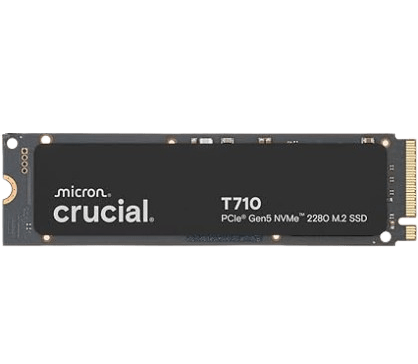
Compatible SSD With ROG Strix G16

Compatibility is assured using our Web service.

How to install RAM and SSD To ROG Strix G16?

How to Upgrade RAM: Step-by-Step

Tools Needed:

  • Phillips #1 screwdriver

  • Anti-static wristband (optional)

  • New DDR5 5600MHz SODIMM RAM


Steps:

  1. Power Off and Unplug
    Completely shut down the laptop and disconnect all cables.

  2. Remove the Bottom Panel
    Flip the laptop over and remove all visible screws using your screwdriver. Gently pry open the back using a plastic tool.

  3. Access the RAM Slots
    You’ll find two RAM slots located near the center of the motherboard.

  4. Remove Existing RAM
    Press both side clips outward to pop the module up. Gently slide it out.

  5. Install New RAM
    Align the notch on the DDR5 module, insert at a 30° angle, and push it down until it clicks into place.

  6. Reassemble
    Reattach the bottom cover, screw it back in, and reconnect any cables.

  7. Verify
    Turn the laptop on, press F2 during boot to enter BIOS, and confirm the memory is detected. You can also check under Task Manager → Performance → Memory.


🛠 How to Upgrade SSD: Step-by-Step

What You’ll Need:

  • PCIe Gen4 NVMe SSD (M.2 2280)

  • Same screwdriver as above


Steps:

  1. Open the Laptop
    Follow the same steps as the RAM installation to access the internals.

  2. Locate SSD Slot
    One slot will be populated (boot drive), and the second will be empty.

  3. Install New SSD
    Insert the SSD at a 30° angle, push it down gently, and secure it with the mounting screw.

  4. Close & Power Up
    Reassemble the laptop, power it on, and format or clone the new drive in Windows Disk Management.

What Type of RAM Is Compatible With This?

The ROG Strix G16 supports DDR5 SODIMM memory, specifically at 5600MHz speed. You should always install two identical modules for maximum performance. Using RAM from brands like Crucial, Kingston, or Corsair is a safe bet.

Avoid using DDR4 or mismatched MHz speeds, as they either won’t work or will slow down both modules.


What Type of SSD Is Compatible With This?

The compatible SSD must meet these conditions:

  • Type: PCIe NVMe Gen4

  • Form Factor: M.2 2280

  • Interface: PCIe 4.0 x4

Gen3 drives may work but won’t fully utilize the motherboard’s bandwidth. Choose Gen4 for faster read/write speeds (around 5000–7000MB/s read and 4000–6000MB/s write).

Top options for U.S. buyers include drives from Samsung (980 Pro), WD Black SN850X, and Crucial P5 Plus.


⚡ What Are the Benefits of Upgrading a Laptop’s RAM and SSD?

Upgrading RAM and SSD has a massive impact on laptop speed and responsiveness:

  • Faster multitasking: Open more browser tabs, apps, and games simultaneously

  • Smoother gaming: Reduces stutters and improves frame consistency

  • Quicker load times: Games and large files load significantly faster

  • Better productivity: Faster editing, compiling, and rendering for creators

  • Longer life: Gives your laptop a longer usable lifespan before needing a full replacement

For U.S. gamers and students, this is one of the most budget-friendly ways to stay competitive.


🔁 Do I Need to Replace My Old RAM?

You only need to replace the old RAM if:

  • It’s slower than 5600MHz

  • You want to max out to 32GB

  • You want dual-channel (and the current setup is single-channel)

For best results, use two matched sticks. If your current stick is 4800MHz and you add a 5600MHz one, the faster one will downclock, so replacing both with two new identical 5600MHz sticks is ideal.

Q&A – Frequently Asked Questions

Q1. What is the max RAM supported on ROG Strix G16?

A: The laptop supports up to 96GB of DDR5 RAM (2x16GB modules) running at 5600MHz.


Q2. Can I mix a 4800MHz RAM stick with a 5600MHz one?

A: Technically, yes, but the faster one will downclock to match the slower speed. It’s best to use matching speeds for stability and performance.


Q3. Does this model support Gen5 SSDs?

A: No. It supports up to Gen4 PCIe NVMe SSDs. Gen5 drives are not compatible with this motherboard.


Q4. What size SSD fits in the slot?

A: The laptop uses M.2 2280 form factor SSDs, which are 22mm wide and 80mm long.


Q5. Is upgrading RAM or SSD safe for warranty?

A: Yes. Acer typically allows user upgrades of RAM and SSD. However, always check your warranty details before opening the device.


Q6. Will SSD upgrades reduce game load times?

A: Absolutely. NVMe Gen4 SSDs can reduce load times by up to 50%, especially in open-world or texture-heavy games.

1 thought on “Asus ROG Strix G16 2025 Compatible RAM and SSD Upgrade”

  1. Pingback: ROG Strix G16 vs Predator Helios Neo 16 AI: Which One Is Worth Your Money? With Buyer’s Guide -

Leave a Comment

Your email address will not be published. Required fields are marked *